 |
|
| TheExcelAddict.com | |
| April 15, 2021 |
|
| Hi fellow Excel Addict, | |
From spring crocuses to snow flurries. That's what
spring's been like here in Newfoundland. On the bright side, our COVID cases are really low and the vaccination uptake has been really good so, who knows, we may be in for a semi-normal summer. It's been a long haul but we'll eventually come out the other side — hopefully more appreciative for the many things we've always taken for granted in the past. I hope you find today's 'Excel in Minutes' tip helpful. Please share my newsletter on your social media accounts — and with your colleagues and any other Excel users you know who want to get smarter with Excel. Have a great day, keep safe and keep on Excelling, Francis Hayes (The Excel Addict) Email: fhayes[AT]TheExcelAddict.com |
|
|
|
|
|
|
|
| Missed my last newsletter? | |
Click Here to View it Online |
|
Having a positive attitude can help us in difficult times. I hope today's quote will help you foster a positive attitude today. Quote of the Day "Patience is not the ability to wait, but the ability to keep a good attitude while waiting" -- Joyce Meyer -- |
|
|
If you have a favourite quote, send it to me
and I may post it in my newsletter.
|
|
THIS WEEK'S 'EXCEL IN MINUTES' TIP |
|
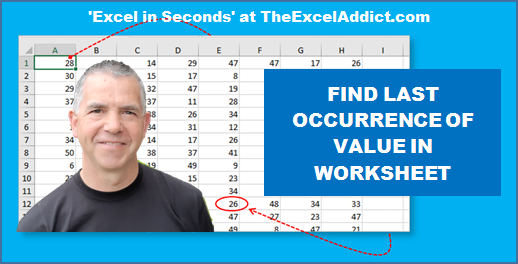
Find Last Occurrence Of Value In Worksheet |
|
One thing I often find myself doing is searching (CTRL+F) for the 'last occurrence' of a value in a worksheet. That's not usually a problem with a small worksheet. But if there are many instances of the value you are looking for, it can be frustrating, repeatedly having to click Find Next until you find the last matching value. 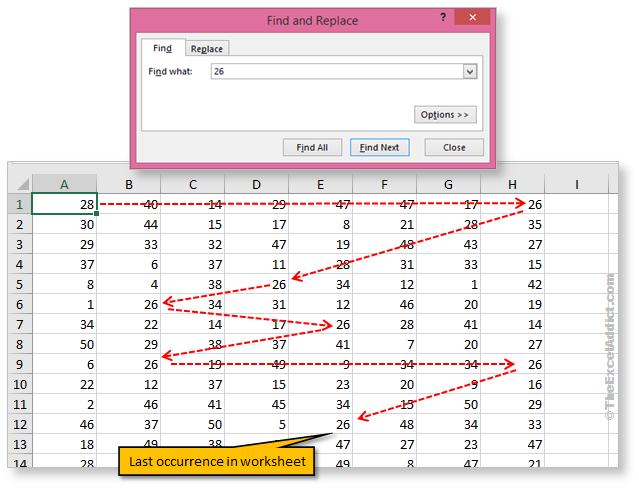 And even then, you may not know if it IS the last occurrence until you click Find Next and it jumps you back to the first value at the top of the worksheet. A faster way to find the last occurrence is to start from the bottom and search backwards. Yes, you can do that. And it's easy. Find the last occurrence of a value in a worksheet 1) Start by selecting cell A1. 2) Press CTRL+F to open the Find & Replace dialog and type what you want to search for. 3) Hold down the SHIFT key and click Find Next. 'Shift' tells Excel to search backwards and since A1 is at the top of the sheet, it will loop back to the bottom of the worksheet and search in rows from bottom to top and columns from right to left. The first item it finds is the last occurrence of that value. 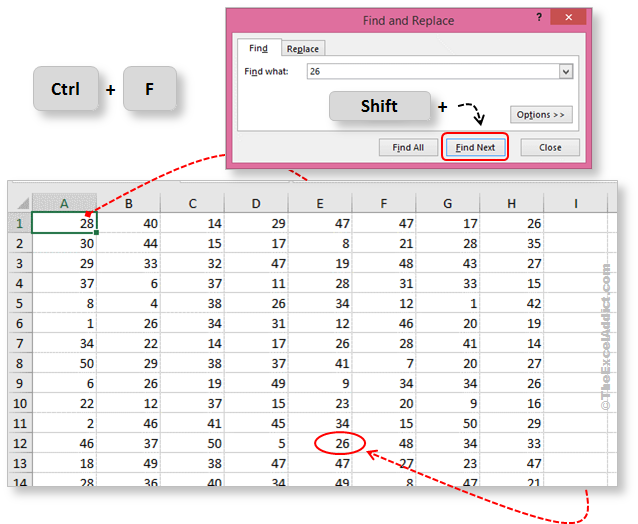 Find the last occurrence of a value in a column 1) Click the column heading to select the entire column. By default, the cell in row 1 is now the Active Cell; 2) Press CTRL+F to open the Find & Replace dialog and type what you want to search for; 3) Hold down the SHIFT key while you click Find Next and Excel will search backwards from the Active Cell. Since the Active Cell is in row 1, the search loops to the last row searches the column from bottom to top. The first item it finds is the last occurrence of that value in that column. 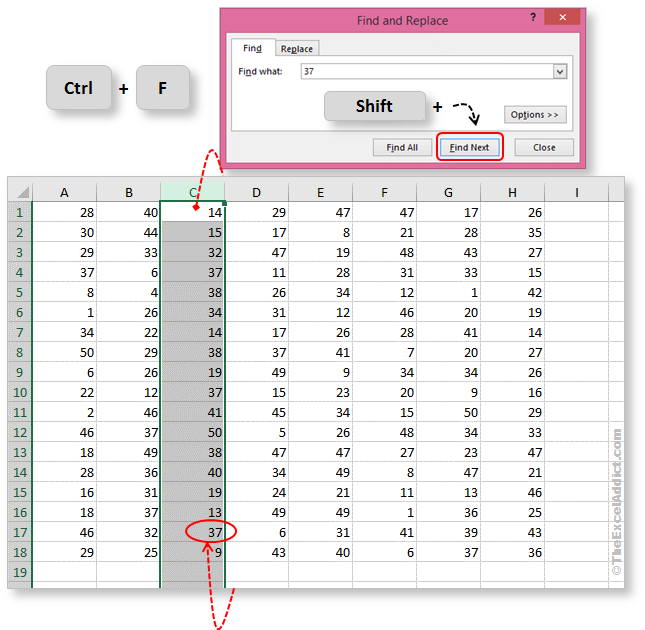 Find the last occurrence of a value in a row 1) Click the row heading to select the entire row. By default, the cell in column 1 is now the Active Cell. 2) Press CTRL+F to open the Find & Replace dialog and type what you want to search for. 3) Hold down the SHIFT key while you click Find Next and Excel will search backwards from the Active Cell. Since the Active Cell is in column 1, the search loops to the last column and searches the row from right to left. The first item it finds is the last occurrence of that value in that row. 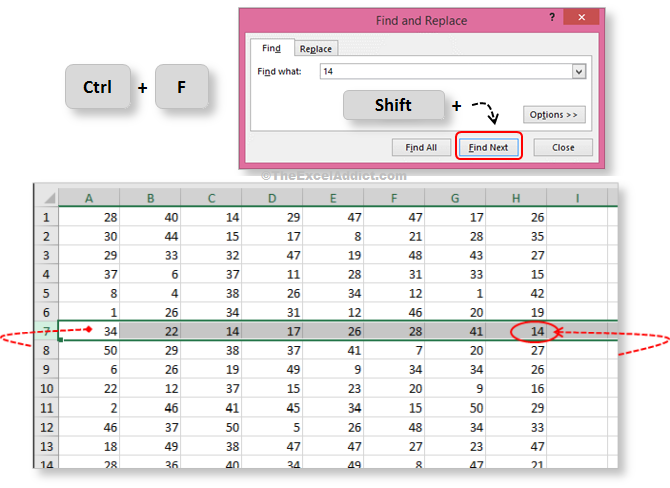 |
|
|
|
|
|
|
|
 |
|
|
|
|
 |
|
| Disclosure: Some of the resources I recommend on my website and in my newsletter pay me a small referral commission if you purchase from them through links on my website or using my referral code. This helps offset the costs of my website. I've worked long and hard to build up my reputation online over the past 16 years as someone who provides exceptional value to my readers. So I'm not willing to risk that. As you know, I don’t just recommend anything. It has to be of outstanding quality and value. If you are EVER not completely satisfied with anything I recommend, please let me know and you will get your money...GUARANTEED. You can't lose. | |