 |
|
| TheExcelAddict.com | |
| April 29, 2021 |
|
| Hi fellow Excel Addict, | |
| I hope you are doing well. This virus is really pushing
us to our limits, isn't it? So we have to persevere and do
whatever it takes to make it safely to the end of this no
matter how long it takes. I'm happy that my wife and I will be getting our first vaccine shot today. I hope you'll find today's 'Excel in Minutes' tip helpful. A few years ago I shared what I call my CopySUM tool in this newsletter. To this day, I get emails from people who say they still use this tool all the time. I also get emails from people who ask me the question that originally prompted me to create this tool many years ago when I was still working. "Is there a way in Excel to copy the sum of a range of cells and paste that total elsewhere?" To refresh those who have maybe forgotten about it and for those who were not on my newsletter list back then, I'm going to share it again as today's 'Excel in Minutes' tip. If you know others who would benefit from this and all my other tips, please share my newsletter with them and also on your social media accounts. Have a great day, keep safe and keep on Excelling, Francis Hayes (The Excel Addict) Email: fhayes[AT]TheExcelAddict.com |
|
|
|
|
|
|
|
| Missed my last newsletter? | |
Click Here to View it Online |
|
Having a positive attitude can help us in difficult times. I hope today's quote will help you foster a positive attitude today. Quote of the Day "Either you run the day or the day runs you." -- Jim Rohn -- |
|
|
If you have a favourite quote, send it to me
and I may post it in my newsletter.
|
|
THIS WEEK'S 'EXCEL IN MINUTES' TIP |
|
Copy And Paste The SUM Of A Range Of Cells |
|
You are probably aware that Excel has a feature called Quick Sum that displays the sum of any cells you select on your worksheet at the bottom of the Excel window on the Status Bar so you don't have to create a new formula every time. 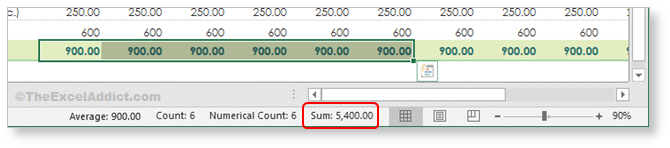 But there is another sum function that I frequently need to do that Excel doesn't help me with. It annoyed me for many years that whenever I needed to take the SUM a range of cells and use it elsewhere in my workbook (or an email or anywhere else for that matter), I either had to remember the total and type it into the other cell or create a temporary SUM formula, copy it and then paste the result. Back then I had been using macros/VBA for several years. Over and over I discovered that if Excel didn't have a built in feature do do a specific task, one could usually be created with a macro. I set about to create a macro that would allow me to select any range of cells, calculate and copy the SUM, then paste the value of the sum elsewhere. What I came up with I call my CopySUM tool.  My macro calculates the SUM of all selected cells that are visible (i.e. excludes cells in hidden or filtered rows) and stores it on the clipboard. This allows me to simply Paste that value to another cell, into an email or just about anywhere else. Many years later, I still use this macro several times a week. It sure beats having to 'remember' the total and the type it into a cell. Below are the steps you will need to follow to make this feature available to you. Disclaimer: I
provide the following instructions without any
warranty. Although I have made every effort to ensure
these will work as described, I cannot guarantee that
they can work for every possible computer
configuration.
Step 1 - Copy and Paste my CopySUM VBA code (below) to your Personal Macro Workbook If you're not sure if you have a Personal Macro Workbook, from the View tab select Unhide. If you see PERSONAL.XLSB listed, you have one. If not, you can easily create one. Click Cancel on the Unhide dialog and see this tip for instructions on How to Create a Personal Macro Workbook. If you already have a Personal Macro Workbook, open the Visual Basic Editor (press ALT+F11), double-click Module1 under PERSONAL.XLSB (in the Project Explorer pane), then paste the following macro into the Code window on the right. Sub CopySUM() Dim DataObj As New MSForms.DataObject On Error GoTo BailOut DataObj.SetText Application.Sum(Selection.SpecialCells(xlCellTypeVisible)) DataObj.PutInClipboard BailOut: End Sub Step 2 - Add a reference to the DataObject This macro requires the use of an object called DataObject which allows VBA to 'put' and 'get' text strings on the Windows Clipboard. To use it you may need to add a reference to it in your VBA project. Please don't be intimidated if you don't know what all that means. Here are the simple steps you need to follow... 1) Press ALT+F11 to open your Visual Basic Editor window; 2) From the Tools menu, click References. 3) Check if 'Microsoft Forms 2.0 Object Library' is listed and selected in the Available References. If not, click the Browse... button, scroll down and select the FM20.DLL file, click Open and OK.
Step 3: Add a button to the Quick Access Toolbar to easily run the macro 1) Right-click the Ribbon and select Customize Quick Access Toolbar. 2) In the ‘Choose commands from’ dropdown, select Macros. 3) Select the macro (CopySum) from the list and click the Add>> button. 4) Click the macro name on the right side of the Excel Options dialog and click the Modify button. 5) Choose a button image to use to run the macro from the QAT, then click OK; 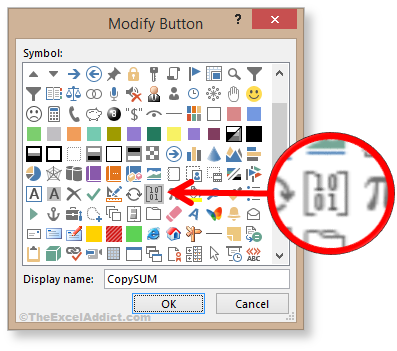 6) Click OK. Step 4: Test the CopySUM macro 1) Enter some numbers in a worksheet; 2) Select the numbers and note the SUM total in the Status Bar; 3) Click the CopySUM button on the QAT to copy the sum of the selected cells to the Clipboard; 4) Finally, select a blank cell and press CTRL+V to paste (or right-click, Paste). 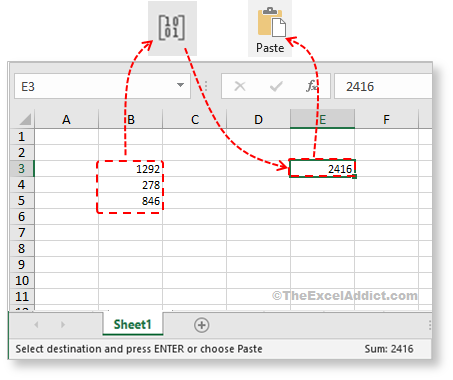 |
|
|
|
|
|
|
|
 |
|
|
|
|
 |
|
| Disclosure: Some of the resources I recommend on my website and in my newsletter pay me a small referral commission if you purchase from them through links on my website or using my referral code. This helps offset the costs of my website. I've worked long and hard to build up my reputation online over the past 16 years as someone who provides exceptional value to my readers. So I'm not willing to risk that. As you know, I don’t just recommend anything. It has to be of outstanding quality and value. If you are EVER not completely satisfied with anything I recommend, please let me know and you will get your money...GUARANTEED. You can't lose. | |
